
What’s New in TopSolid’Wood v6.27
TopSolid Wood 2026 Usability Improvements
TopSolid Wood 2026 new features arrive in version 6.27, bringing faster workflows, smarter automation and better production tools for Australian woodworkers and joiners.

Usability
Quick search and command execution
The new quick search feature lets you find and run any command without browsing through menus.
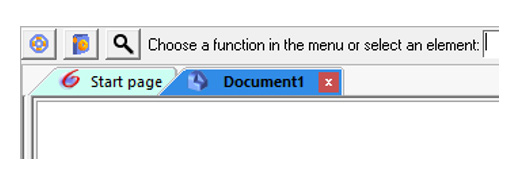
1. In neutral mode, click on the magnifying glass
2. Enter a few letters of the command name in the search bar, then press Tab to start the
3. TopSolid immediately displays the matching
4. Click on the command or press Enter to run
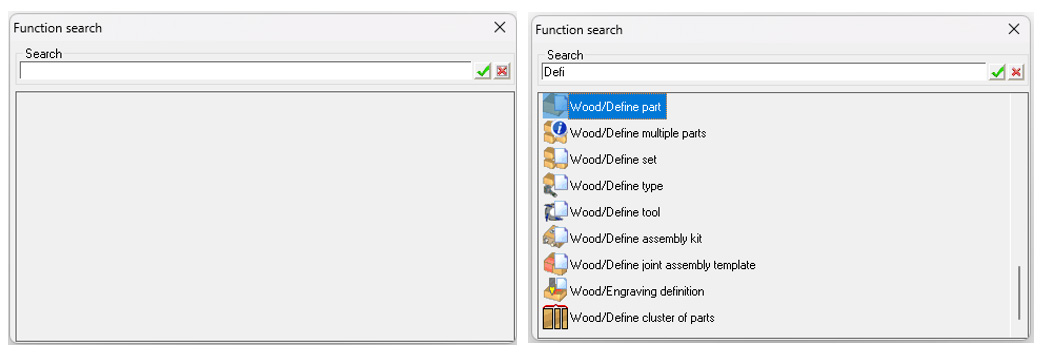
The selected command is executed right away, helping you save time while navigating.
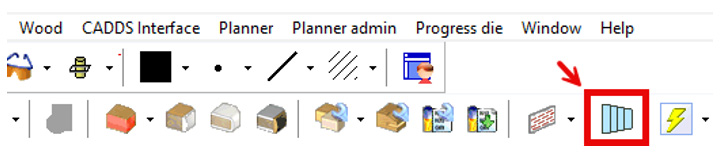
Automatic process verification
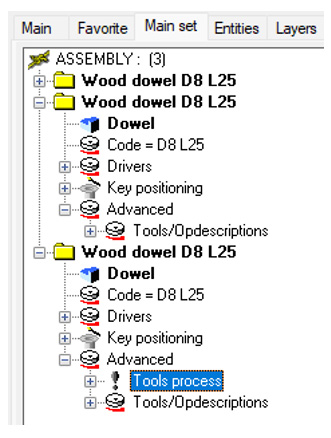
The new Verify process command displays a list of components whose processes have not been executed in the document where they are included.
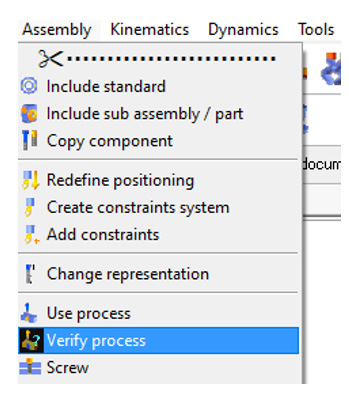
When you run the command, TopSolid analyzes components that contain processes and displays those whose processes have not been executed.
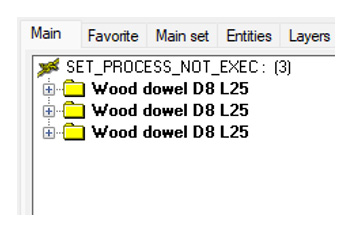
Important: This command does not list missing operations on parts. It only includes processes that have not been created on the operating component.
Automatic process generation
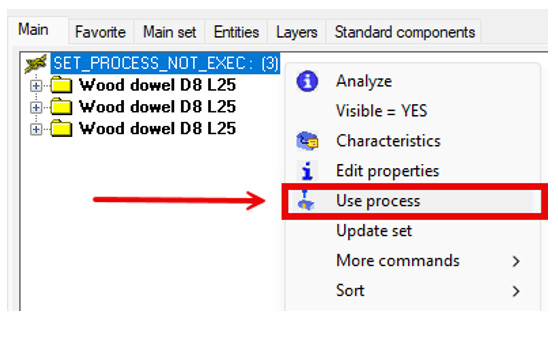
The new contextual Use process command, accessible directly from the verification results, allows you to automatically generate processes for all identified components.
Behavior
If a component’s process fails, processing automatically continues with the next component. The failed process remains listed for later review.
At the end of the operation, the tree is recalculated to show both the status of the generated processes and those that still need to be executed.
Guided distribution wizard
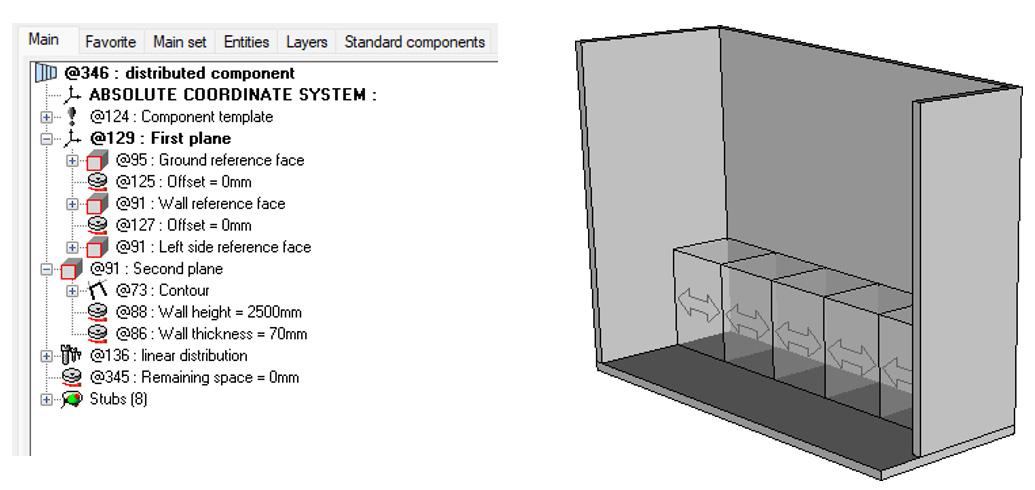
A new wizard integrated into the distribution command now allows for quick, reliable, and fully guided placement of a distribution through a series of simple steps.
Behavior
From the distribution command, select the Wizard option after defining the distributed block values. This will start a step-by-step workflow.

You will then be prompted to define, in order:
-
a ground face and its offset (measured along the face normal),
-
a wall face and its offset (also measured along the face normal),
-
the left side,
-
the right
After you set these four parameters, the distribution is automatically generated based on the defined references. Since offsets are calculated along the normals of the selected faces, positioning remains consistent, precise, and independent of the geometry.
Defining a coordinate system as an auxiliary element in neutral mode
You can now define a coordinate system as an auxiliary element directly in neutral mode. Click on the coordinate system to display the corresponding option immediately.

Automatic retention of the Standard filter
The Filter Standard option, when activated from the tree, is now saved automatically.
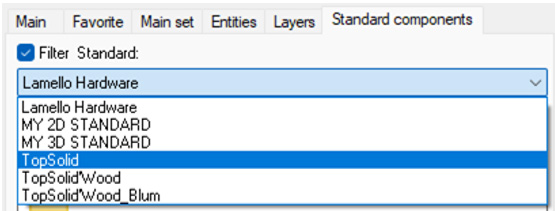
The filter state is retained in the following situations:
-
when you reopen a document,
-
after closing and restarting the software,
-
and for all documents opened
Note: This retention is global: the filter remains active for all documents until you manually deactivate it.
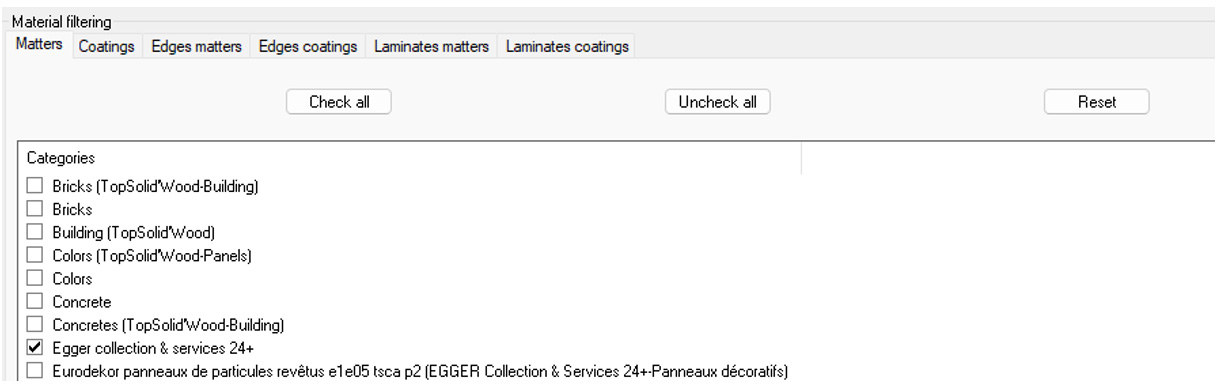
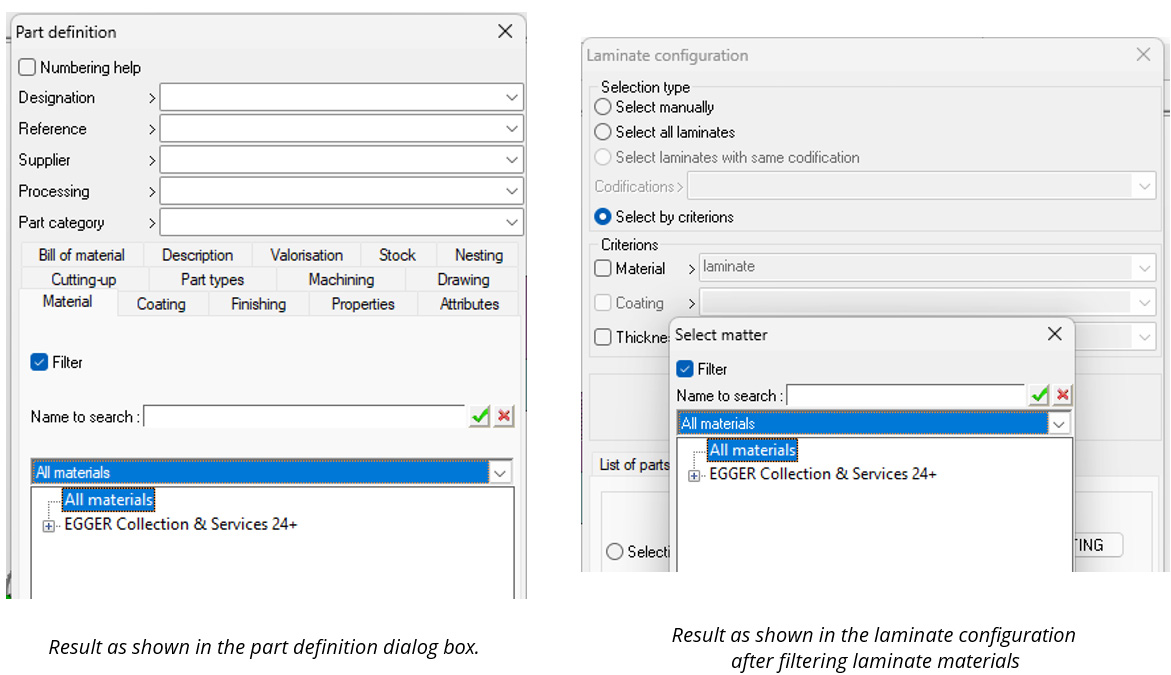
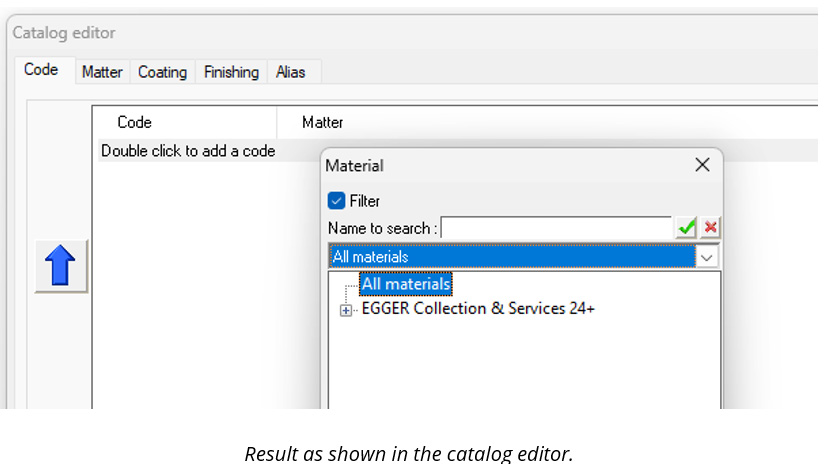
Matter and coating filtering at document level
You can now apply a specific filter for matters and coatings directly in the document properties, independently of the global settings defined in Tools > Options.
Note: This filtering only affects the current document. Click on the Reset button to instantly restore the default filters.
Selective component hiding
A new configuration keyword, D_COMPO_INVISIBLE, lets you hide specific component families, types, or variants within libraries. This feature helps you simplify the display and limit access to elements that should not be used directly from the standard inclusion dialog.
For example, the standard files for profiling tools and edge-banding tools are intended to be used only through the dedicated profiling and edge-banding commands. Therefore, displaying them in the standard inclusion dialog is unnecessary.
Add this keyword to a library’s lib.cfg file to control which elements are visible in selection interfaces (such as libraries or the interchange feature):
D_COMPO_INVISIBLE [Family] [Type] [Variant]
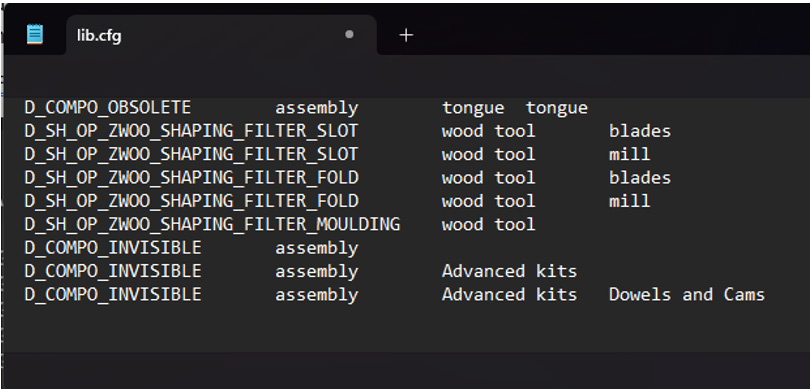
Examples:
-
To hide the entire Assembly family: D_COMPO_INVISIBLE assembly
-
To hide only the Advanced kits type in the Assembly family: D_COMPO_INVISIBLE assembly Advanced kits
-
To hide a specific variant in a given family: D_COMPO_INVISIBLE assembly Advanced kits Dowels and Cams
Note: This filtering does not affect interchange actions or sub-component changes.
Multi-selection of driver blocks for handle modification
The driver block modification command now supports multi-selection. This allows you to apply the same handle modification to multiple driver blocks in a single step.
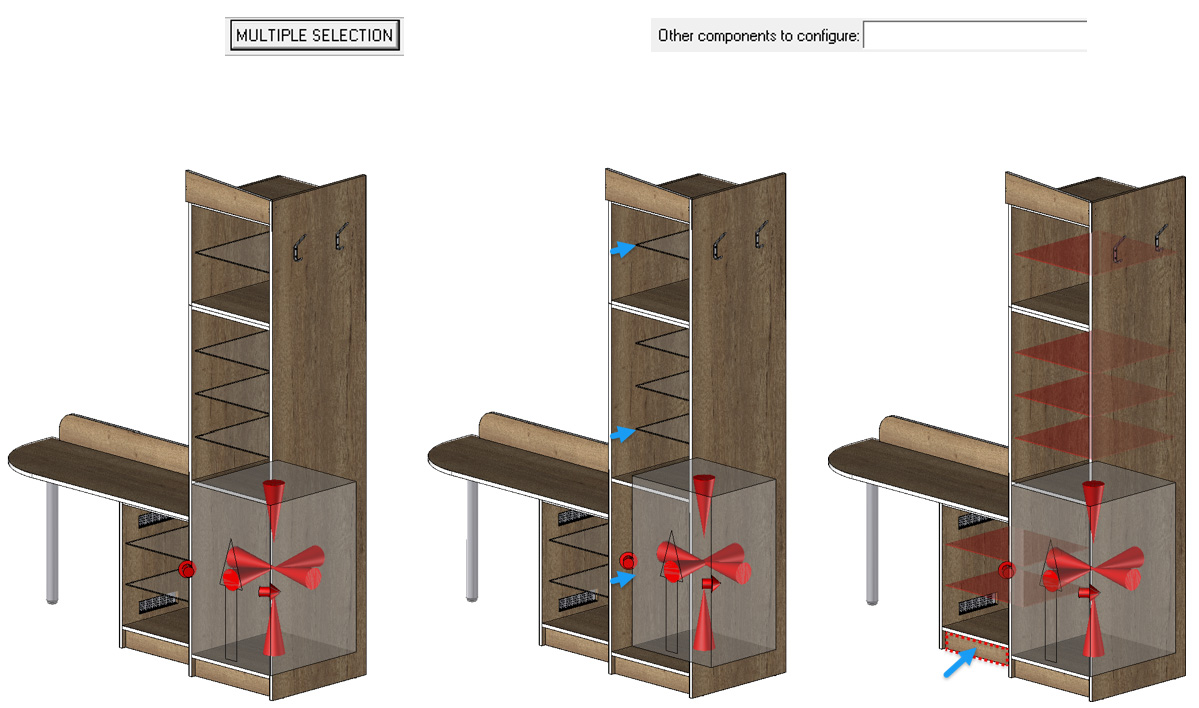
Behavior
-
After selecting the handle you want to modify, click on Multiple selection to select all the relevant driver
-
If there are several instances of the same component, click on the Identical components button to automatically select all of them.

Fixed overdimension management on panels
Three new configuration keywords let you define fixed overdimensions for panel entities:
-
ZWOO_PANEL_PROP_OVERLENGTH_VALUE : length overdimension
-
ZWOO_PANEL_PROP_OVERWIDTH_VALUE : width overdimension
-
ZWOO_PANEL_PROP_OVERTHICKNESS_VALUE : thickness overdimension
By default, these values are set to 0 mm. You can change them to automatically apply a different overdimension (for example, 5 mm). This feature is especially useful in production environments where overdimensions are added to the finished dimensions of the panel, including the edges.
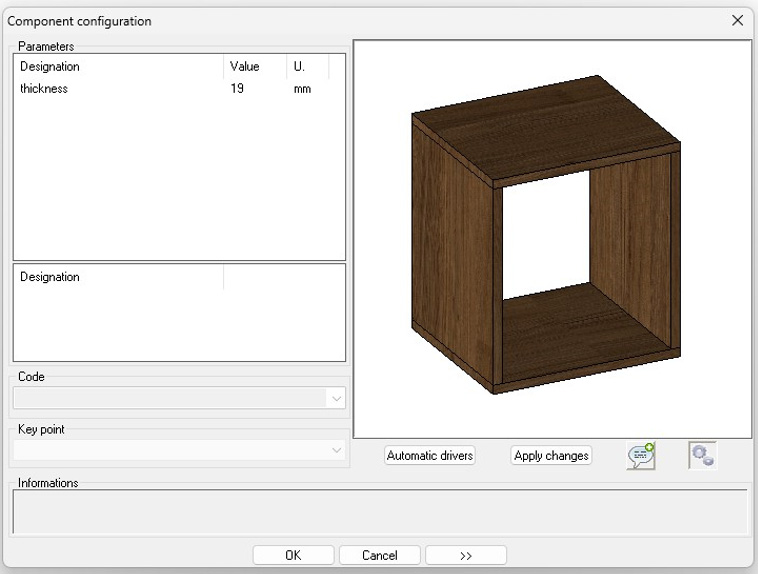
Component configuration in neutral mode
In neutral mode, clicking on a component now displays the Configure option. This option opens the same dialog box used for the visual configuration of standard components.

Note: With this improvement, configuration is now accessible from any context.
Advanced STEP export
The Export geometries command now allows you to export directly to the STEP format. You can choose between two export modes:
-
Export all parts into a single STEP file
-
Create a separate STEP file for each part or shape

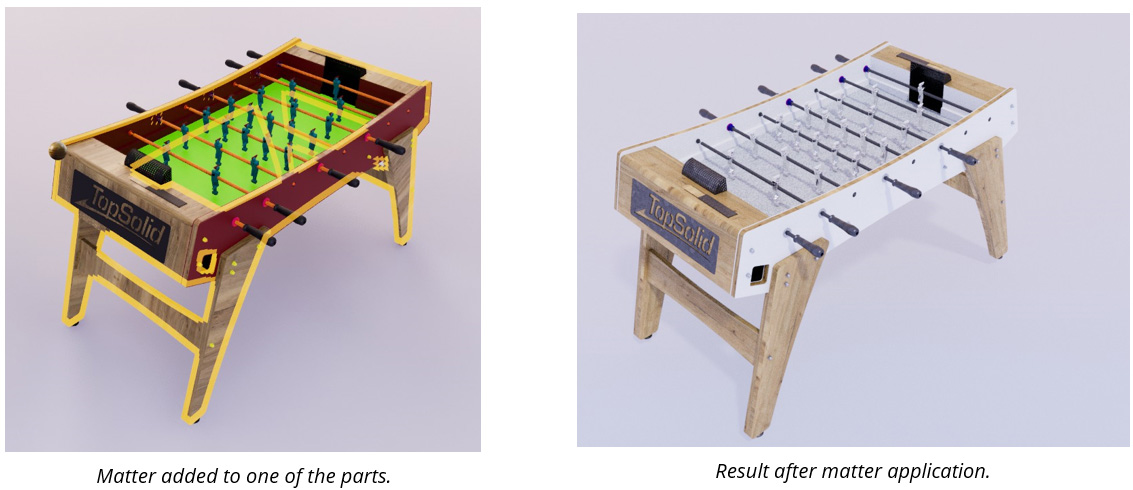
Additionally, when exporting an entire project or a selection of parts, TopSolid automatically assigns a unique random color to each exported part, based on its matter and coating combination. This visual classification helps you quickly identify groups of similar parts and makes it easier to apply a common matter or texture.
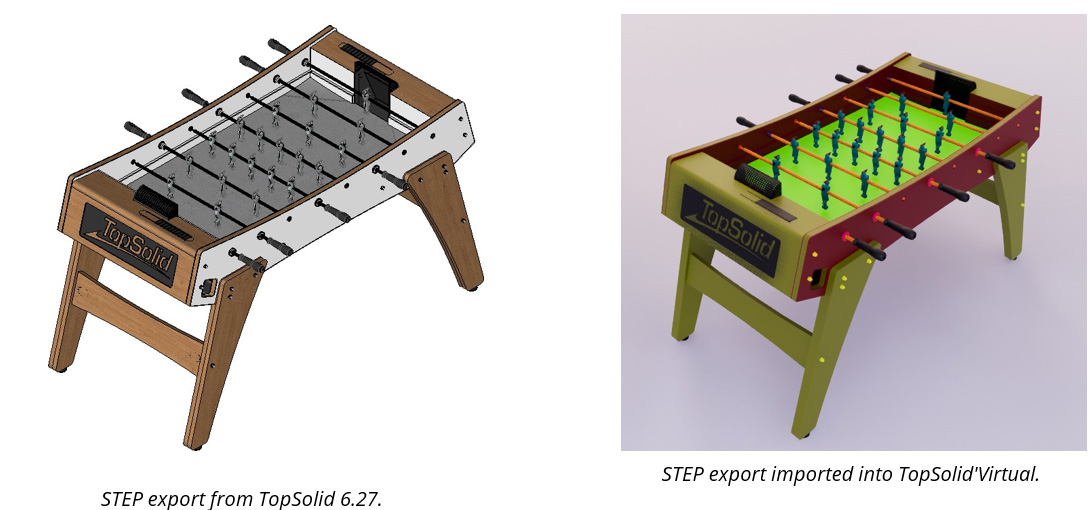
When exporting to STEP, the software automatically applies different colors to parts according to their matter and coating. When you import the STEP file into TopSolid’Virtual or any other 3D viewer, these colors improve readability, make selection easier, and support content reuse.
Hybrid selection in the edge configuration
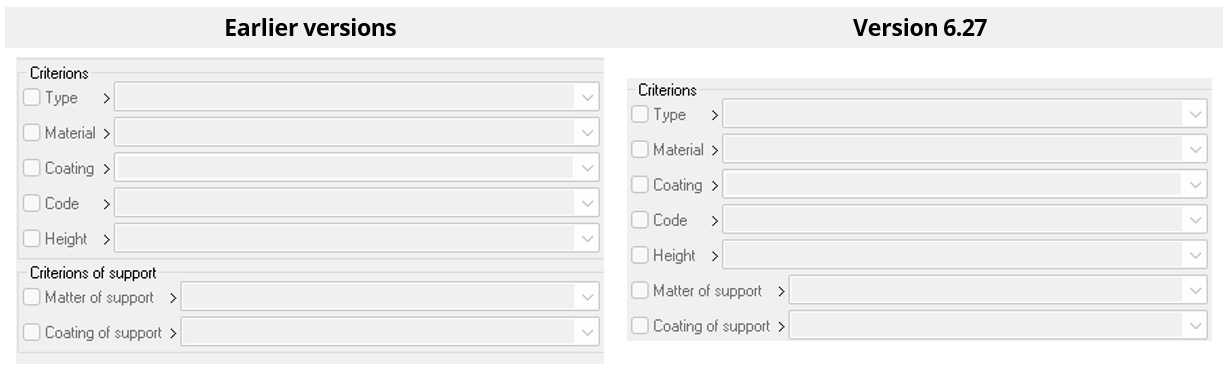
In the edge configuration, the Criteria and Criteria of support sections are now combined into a single section. You can now select and combine all available criteria—such as matter, coating, type, code, and height—in one place.
This change allows for more precise and flexible searches, without the need to switch between different sections.
Multiple validation of component drivers
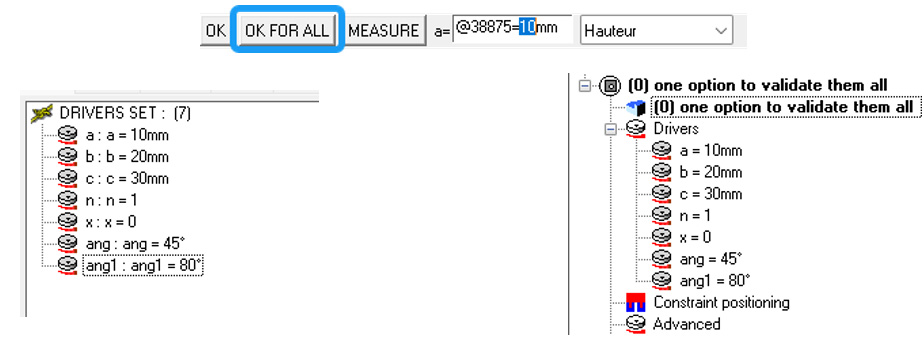
When you insert a component, if TopSolid detects that the insertion document contains drivers with the same names as those in the component being inserted, an OK for all button is now displayed.
This button automatically assigns the corresponding values from the insertion document to the component’s drivers.
Serial copy in loop mode
The serial copy feature is now available for curves created using the Curves > Copy edge command in Loop mode.
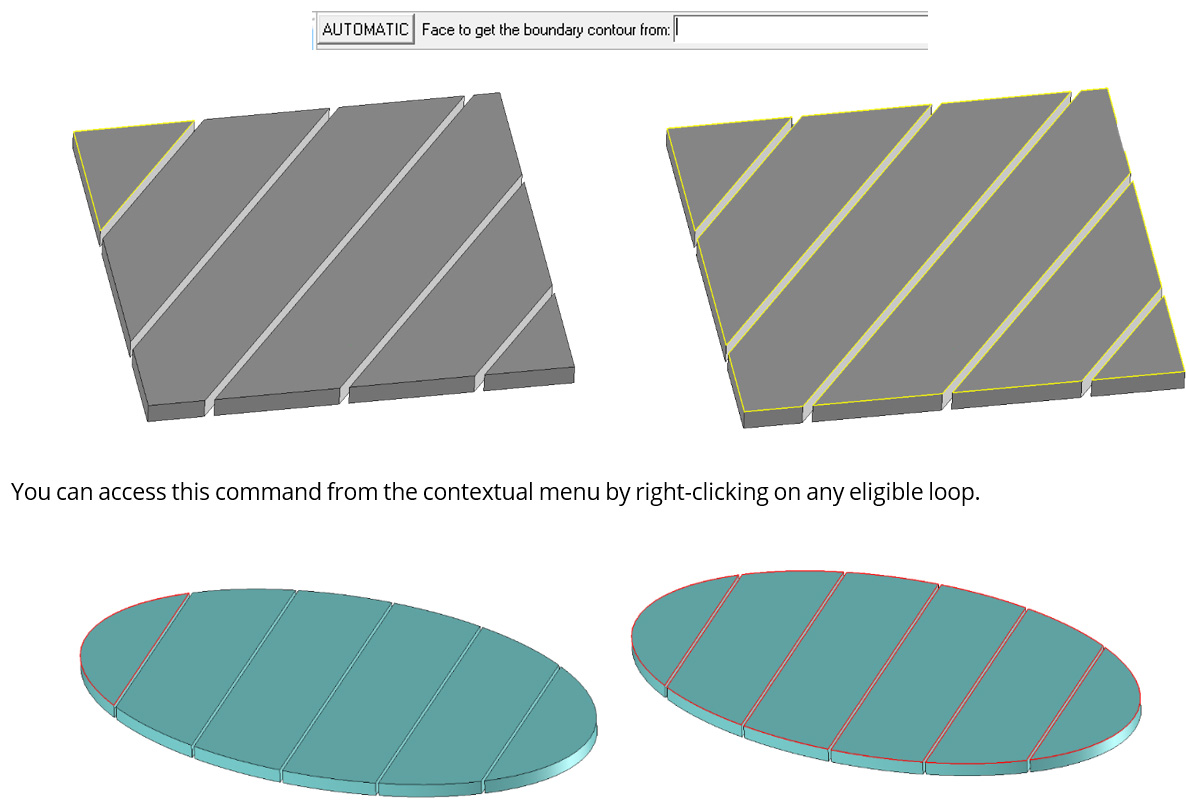
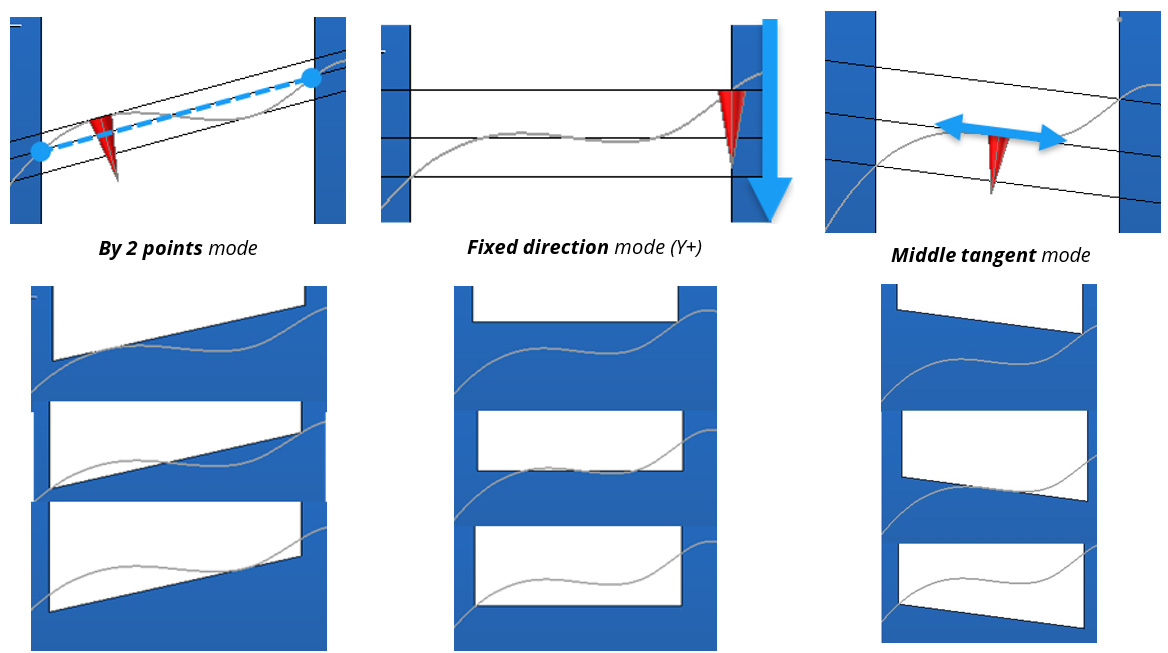
Face straightening during swept curve trim
In the Shape > Trim command, when using the By sweeping curve mode, a new option is available to automatically straighten the faces of a solid based on the sweep curve plane.

There are three available straightening modes:
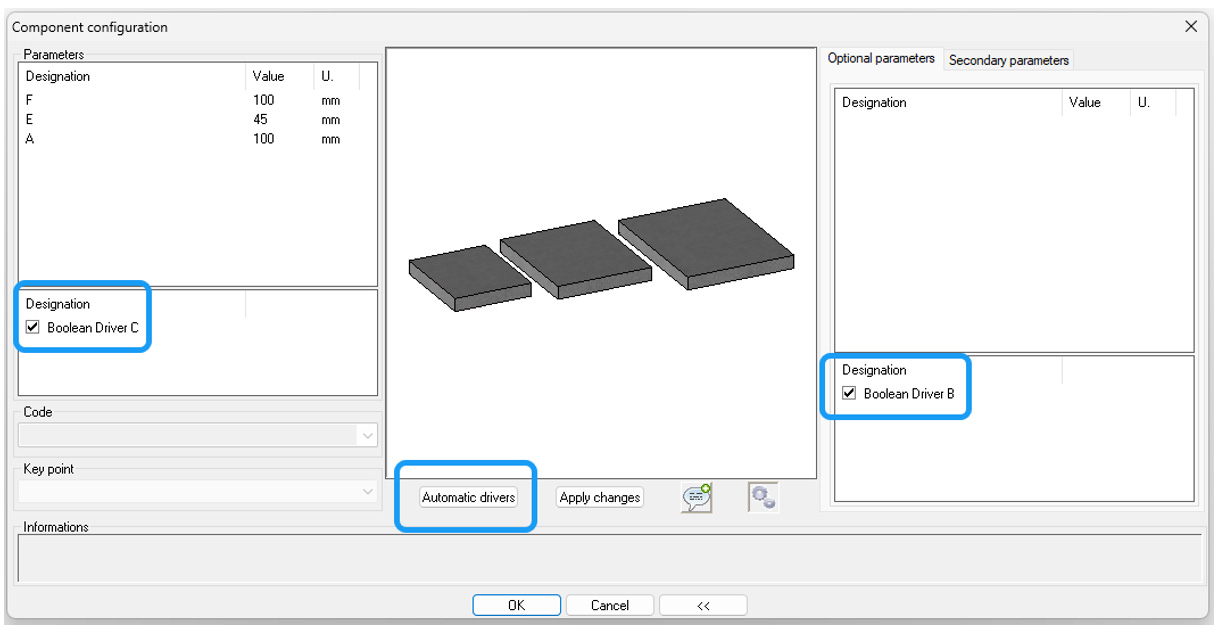
Automatic connection of Boolean parameters for standard components
The Automatic drivers button now automatically connects the Boolean drivers of a component to those in the inclusion document when they have the same name. This feature removes the need for manual linking.
New inside/outside mode for offset curves
Creating offsets on a closed curve now features a dedicated mode that allows you to precisely control whether the offset is applied to the inside or outside of the curve.
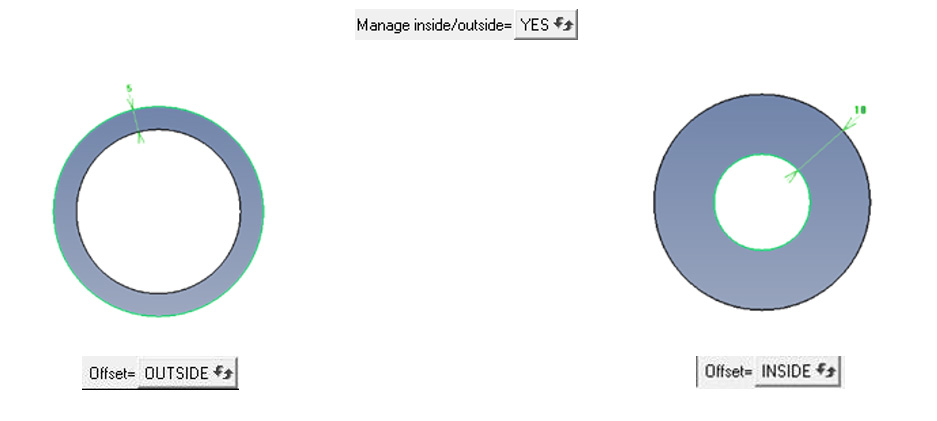
Previously, the direction was determined by the mouse position during creation. When using geometric drivers, this approach could cause unstable behavior due to factors such as:
-
the current coordinate system,
-
the origin of the
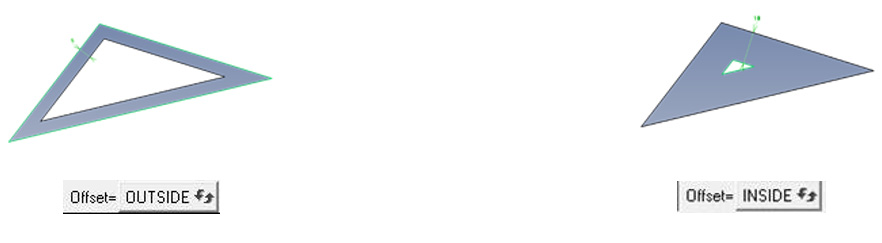
You can now reliably select the construction side of the curve, regardless of the coordinate system or the original context.
Separation of merged panel drivers
This feature enables you to separate panel drivers that share the same parameters.
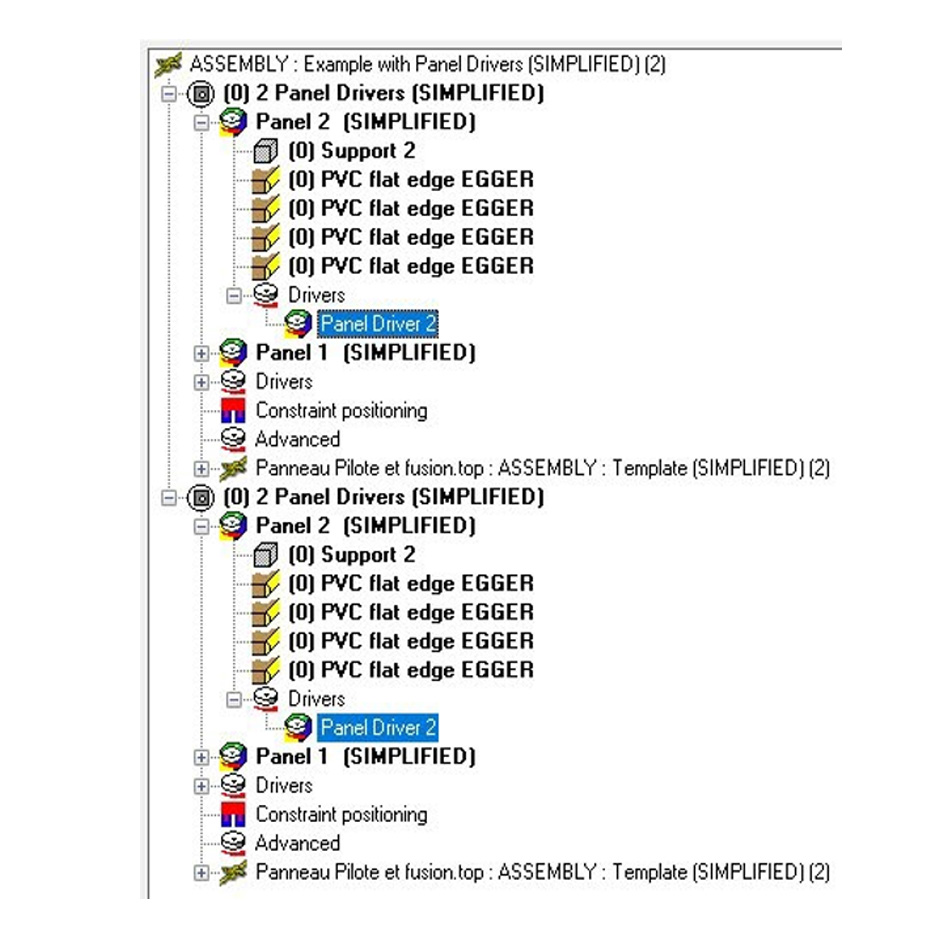
When two or more panels use a shared driver, you may need to separate them to restore independent operation for each panel.
The new contextual Separate driver command allows you to detach merged panel drivers in a single step.
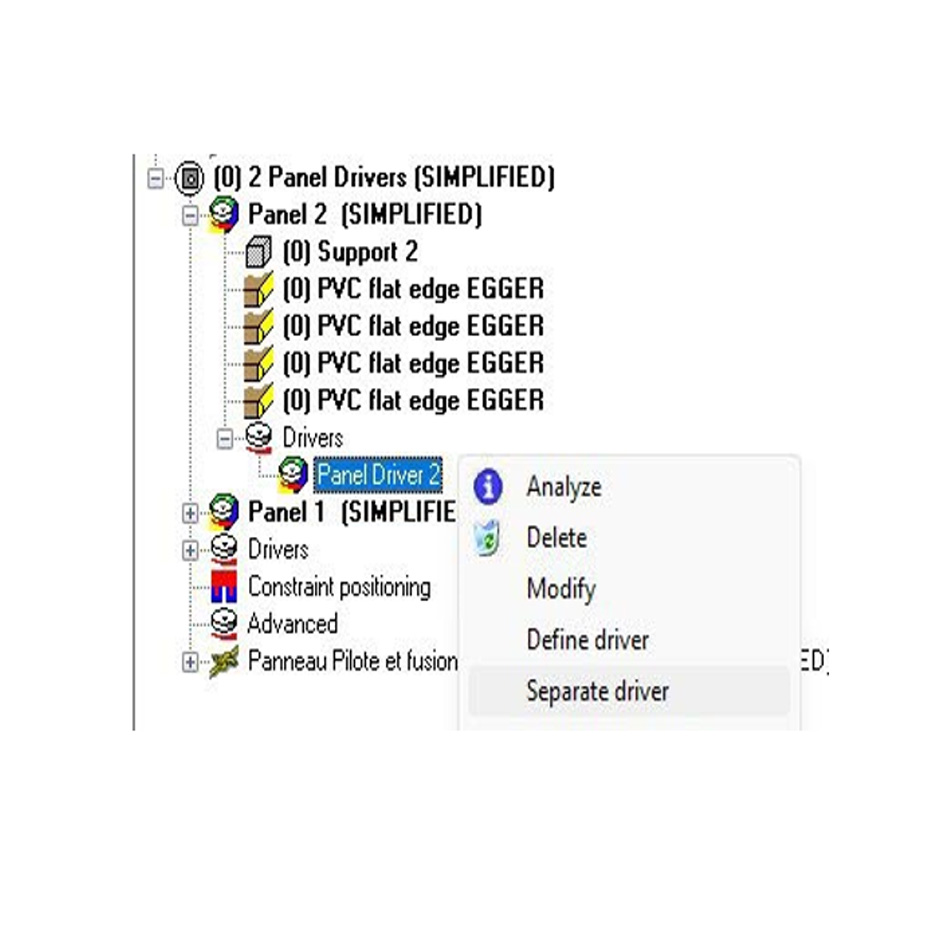
This action unlinks the merged driver, restoring full autonomy. The driver will then function independently, without affecting or being affected by the elements it was previously connected to.
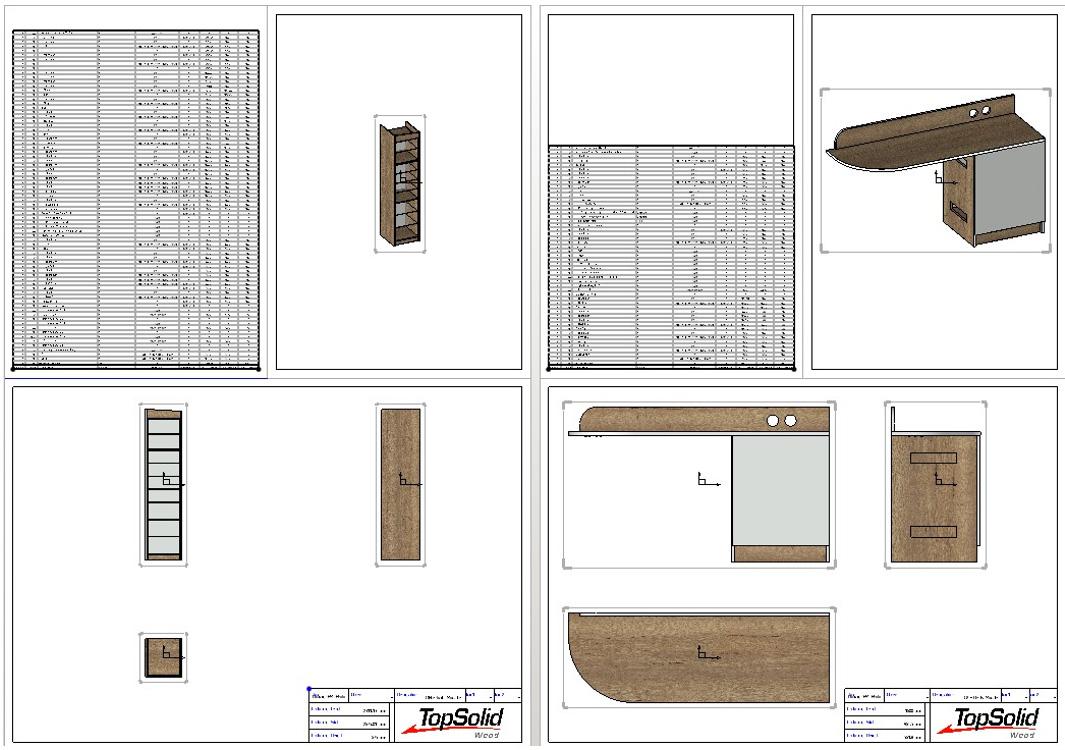
Multi-folios drafting template
The Multi draft command now supports templates with multiple folios. This enhancement provides greater flexibility when generating drawings automatically.
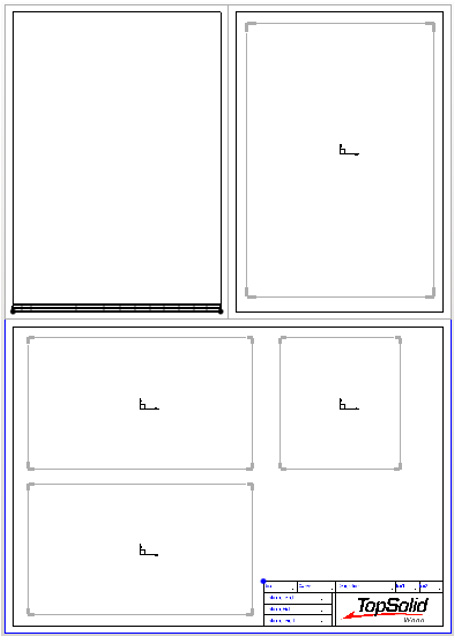
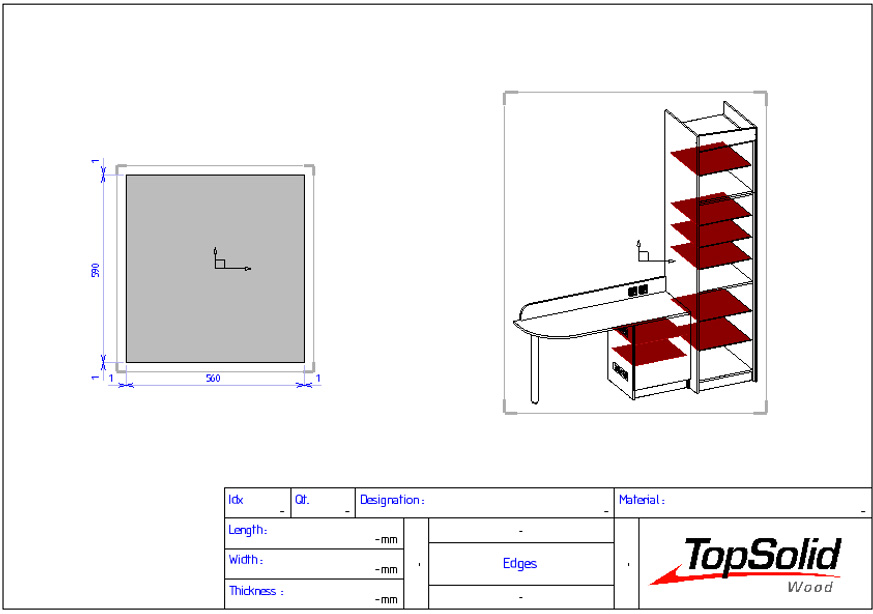
Shading of identical parts in identification views
During multi-drafting, all identical parts that are grouped together during sorting are now displayed in shaded mode at the same time. Previously, only the first part in the group was shown as shaded, which could make it harder to visually identify similar parts.
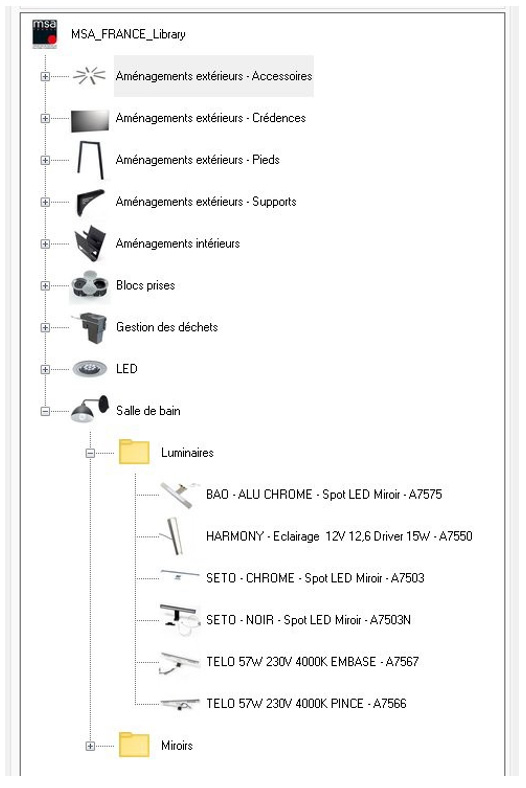
BOM: Advanced indication of edge/laminate presence or absence
You can now use a specific symbol to indicate whether edges or laminates are present or absent in the bill of materials.
To configure this, manually add the following configuration keywords to the topzwoo.cfg file. Replace the value 1 with the character you want to use:
-
To indicate the absence of edges: ZWOO_D_ELT_CODIFICATION_BOM_NO_EDGE_CHAR 1
-
To indicate edges without codification: ZWOO_D_ELT_CODIFICATION_BOM_SEP 1
Partial loading of standard components
Standard components are now loaded only for expanded nodes. This change improves display performance and reduces loading times.
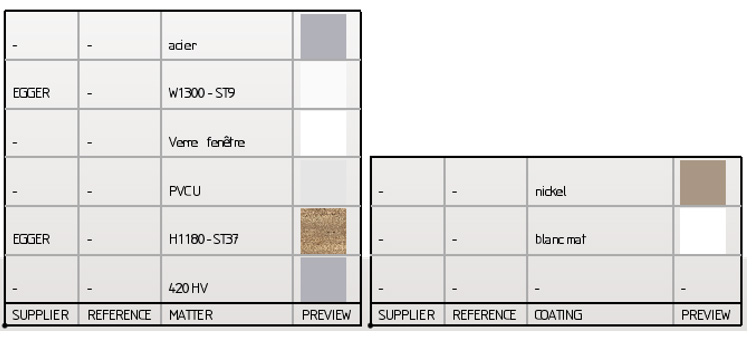
Optimized matter previews for neutral mode modifications
When you modify a component in neutral mode, the BOM property that displays matters and coatings now automatically uses the matter preview.
Note: This optimization significantly reduces file size.
This enhancement simplifies the use of triangle tools and eliminates the need to create special tools.
Back to TopSolid Design Software.
Message Us
Get In touch. Ask Any Questions or Get a Free Demo
Call Us
(02) 7205 4820
Contact us
Opticad Solutions Pty Ltd
Kareela, New South Wales, Australia
Phone : 02 7205 4820